How to move your WhatsApp chats from Android to iPhone
If you are switching from Android to iPhone, you can bring your WhatsApp chats, media, and settings with you. You can use the Move to iOS app to preserve your chat history. It is not possible to transfer some data, like your call history.
What you can and cannot transfer
WhatsApp lets you transfer your chat history when you move from Android to iPhone. Specifically, you can move individual and group chats, communities, channel updates, media files, profile photo, and settings. Instead, you cannot transfer your call history, channel media, and display name. In addition, peer-to-peer payment messages are not included. You should keep these limitations in mind before you start the transfer.
What you need before you start
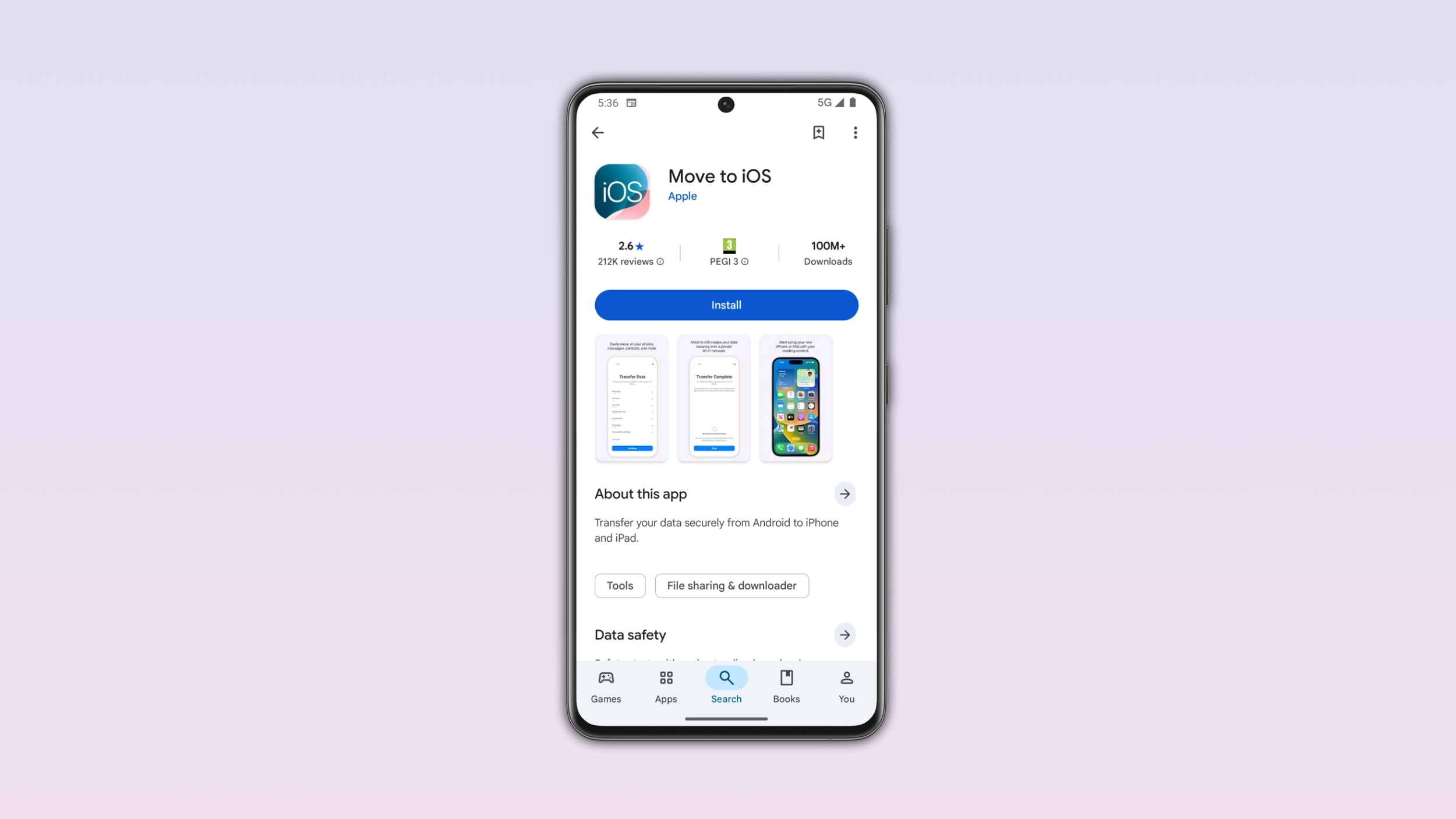
Your Android device needs Android 5 or above. Instead, your iPhone needs iOS 15.5 or newer. You need to install the Move to iOS app on your Android phone. Both devices need the latest version of WhatsApp installed. Your new iPhone must be brand new or factory reset, since the transfer only works before you activate WhatsApp on your iPhone. Both phones need to be plugged in and connected to the same Wi-Fi network.
How to move your chats step by step
Open the Move to iOS app on your Android phone and follow the instructions you see on the screen. Your iPhone will display a code: you need to enter it on your Android phone when the Move to iOS app asks for it. In the Transfer Data screen, make sure to select WhatsApp. Tap Start on your Android phone and wait for WhatsApp. WhatsApp will sign you out of your Android phone. Tap Next to go back to the Move to iOS app, then tap Continue to start the transfer. Wait for Move to iOS to confirm the transfer is complete. After that, install the latest version of WhatsApp from the App Store on your iPhone, open it, and log in with the same phone number. Now, let the process complete. When your iPhone is ready, open WhatsApp and your chats will already be there.
What happens to your data during the transfer
The Move to iOS app saves your chat history iCloud once you create a backup. WhatsApp cannot see the data you transfer since it is private. Your Android phone keeps all your data after the transfer. This means that nothing disappears from your Android device unless you delete WhatsApp or wipe the device manually.
What to do if something goes wrong
If WhatsApp is already active on your iPhone, you can no longer transfer your chats to it. To get your old history back, you need to factory reset the iPhone, reinstall WhatsApp on your Android phone, and start a new transfer. Note that you cannot merge old chats from Android with new ones from iPhone. If your new iPhone has a different phone number, the transfer will not work. You need to change your number on your Android device. If you see the error "Something went wrong" or "An unknown error occurred," your chat history may be corrupted. You can restart both phones and attempt the transfer again.