How to safely back up and restore WhatsApp chats and media on your new iPhone
With the release of the iPhone 16 models imminent, users upgrading their devices have several options to ensure their WhatsApp chat history is preserved. This guide covers different methods to back up and restore your chats and media, helping you choose the best approach to safely migrate them to your new iPhone.
WHATSAPP BACKUPS
With the upcoming release of the iPhone 16 models, many users are preparing to upgrade their devices. If you use WhatsApp, you might be concerned about preserving your chat history during the transition, but there's a rare bug that might affect the ability to properly restore WhatsApp chats from iCloud backups. Specifically, this bug prevents some media files from being restored correctly through WhatsApp's built-in feature, causing them to appear as unavailable or missing within the media gallery. This has already caused some users to lose their images and videos after restoring their chat history, leaving only text messages intact. As a result, it's important to take extra precautions when transferring your data to avoid losing important media files.
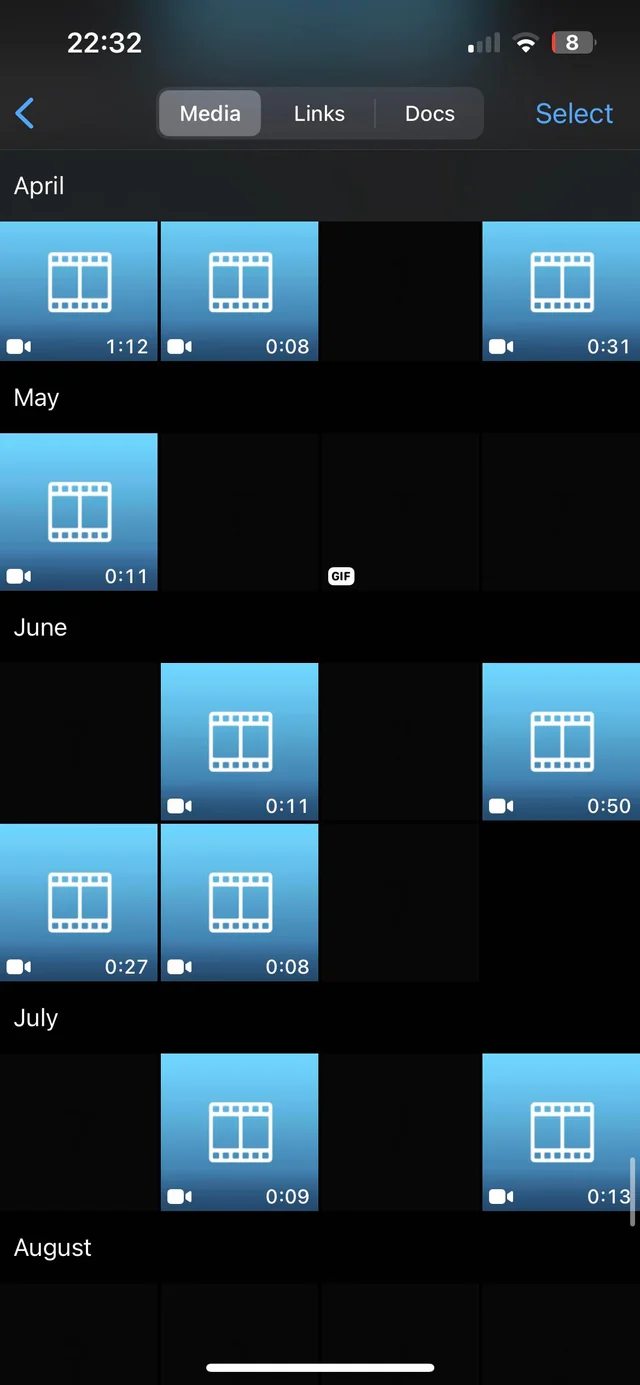
The bug has been a problem for a certain number of WhatsApp users since at least 2016 and it affects restoring media files from iCloud backups created by WhatsApp. Users have reported encountering issues where only text messages are restored, while media files, such as photos, videos, and voice messages, either fail to restore completely or appear as empty files with a question mark or an empty thumbnail. However, users have different options to restore their chat history if restoring it directly from the app causes issues with media files. To help you avoid potential issues, we decided to share a comprehensive guide on how to back up and restore your WhatsApp chats with ease, and what to do if you encounter any problems. These suggestions also apply to the WhatsApp Business app.
QUICK START AND HELLO SCREEN
We believe that Quick Start is the most reliable method to transfer data from your old iPhone to your new one. If you decide to choose this method to set up your new iPhone and you already activated it, please follow these steps:
- Prepare both devices: ensure your old iPhone is connected to Wi-Fi, and Bluetooth is enabled. Turn on your new iPhone, make sure to place it near your old device.
- Initiate Quick Start: follow the on-screen instructions to set up your new iPhone using Quick Start. If the prompt disappears, restart both devices and try again.
- Choose the transfer method: you can either transfer data directly from your old device or download it from iCloud. You need to choose the "Transfer from iPhone" option to securely move your data directly from your old device to your new iPhone.
- Keep devices near each other: keep both devices close and connected to power until the transfer is complete. Transfer times can vary based on the amount of data and network conditions.
Additionally, when setting up your new iOS device for the first time, you can transfer your apps and data, including WhatsApp chat history and media, directly from another phone starting from the Hello Screen.
CHAT TRANSFER
WhatsApp also offers a Chat Transfer feature to easily move all your personal messages, photos, videos, and documents directly between iPhones without relying on iCloud. While restoring from a backup is the traditional method, this feature ensures the full transfer of your chat history, media, and account information, excluding peer-to-peer payment messages, call history, and media from WhatsApp Channels. This method offers an alternative to the direct transfer from the Quick Start screen, allowing users to migrate their WhatsApp data to their new iPhone (using the same phone number). However, certain prerequisites must be met: both iPhones should have the latest iOS version and WhatsApp build installed. Additionally, the new iPhone must not be registered on WhatsApp before the transfer begins.

Once these prerequisites are met, make sure both iPhones are close to each other, connected to a power source, connected to WiFi, and have local network permissions enabled. On your old iPhone, go to Settings > Chats > Transfer chats to iPhone > Start, and later scan the QR code displayed on the new phone. Meanwhile, on your new iPhone, open WhatsApp, verify your phone number, and confirm the chat history transfer. When prompted, accept local network permissions and use the WhatsApp camera on your old phone to scan the QR code on your new phone. During the transfer, a progress bar will display the completion percentage. Ensure both phones stay close to each other and remain unlocked. Once the transfer is complete, you’ll be directed to the Chats list on your new iPhone, with all your conversations and media intact.
In case you experience issues during the transfer, you should turn off both devices, wait 30 seconds, and turn them back on. Then, retry the chat transfer process. It's important not to delete or reset your old phone until you've confirmed the successful transfer on your new phone. In case the transfer fails, gets stuck, or you encounter an error, your data will still be available on your old iPhone, allowing you to retry the process without losing anything.
MULTIPLE BACKUPS
We also recommend users create multiple backups: one within WhatsApp, a full iCloud backup, and a backup on a computer. This ensures you have multiple copies of your chat history to rely on in case anything goes wrong during or after restoring your chats directly from WhatsApp. For instructions on how to create these backups, see the guide below:
- WhatsApp Backup: Go to WhatsApp > Settings > Chats > Chat Backup, and create a backup. It's very important to mention that your available iCloud account and iPhone storage should be at least 2.05 times bigger than the size of your backup. This is necessary because WhatsApp archives your chat history and media files into a backup file before uploading it to iCloud. To successfully create this backup, WhatsApp requires additional storage on both your iPhone and iCloud account because the app first compiles all your chat history and media into a temporary archive file before sending it to iCloud. Without sufficient free space on your device, WhatsApp cannot complete this archiving process. If your iPhone storage is insufficient, the app may fail to generate the archive, resulting in an incomplete or failed backup. In addition, when you initiate a backup, it does not immediately replace the old backup on iCloud. During the upload process, both the old and new backups may temporarily occupy space on your iCloud account. This ensures that if something goes wrong during the upload, you can still restore from the previous backup. As a result, you need enough iCloud storage to accommodate the new backup file alongside any existing ones until the upload is fully completed.
- iCloud Backup: ensure your iCloud backup is up-to-date by opening iPhone Settings > Your Name > iCloud > iCloud Backup, and make sure your iPhone is backed up. In addition, verify that WhatsApp is included in the backup by checking if it's enabled in the backup details screen in iPhone settings. Note that this will never include WhatsApp's end-to-end encrypted backups.
- Backup on your computer: you can also create a backup of your old iPhone to your computer. Connect your device, open iTunes or the Finder app, and select "Back Up Now". Keep in mind, this backup won't include WhatsApp's end-to-end encrypted backups.
If you choose to back up your chat history directly from WhatsApp and restore it later, it's important to open each chat to ensure all images and videos have been restored. If any media files are missing or the chat history is unavailable after logging into WhatsApp on your new phone, you should consider using an alternative method to restore your chat history. Remember, as long as you haven't deleted the app, you can always log into WhatsApp on your old iPhone and access your chat history to try a different recovery option.
It is worth noting that recent changes to end-to-end encrypted backups affect how WhatsApp backups are handled. When end-to-end encrypted backups are enabled, iPhone doesn't include your WhatsApp chat history in its full iCloud backup due to privacy policies. This means that if encrypted backups are enabled, WhatsApp data won't be fully backed up through iCloud. Instead, users need to back up their chat history directly within WhatsApp, which may lead to incomplete chat history if the bug occurs. To prevent issues, we recommend users temporarily disable end-to-end encrypted backups. By disabling encrypted backups temporarily, you ensure that your WhatsApp chat history is always included in the backup process and can be more reliably restored. After restoring your chat history on your new iPhone, you can re-enable encrypted backups in WhatsApp if desired.
If you restore your chat history using WhatsApp's built-in feature and find that media files are missing, you have a couple of options. You can either reset your new iPhone and use the Quick Start method to transfer all your data again or use WhatsApp's Chat Transfer feature by logging into your old phone to move your chat history directly. If you're unsure which method to try, we recommend users start with WhatsApp's built-in restore. If media files are still unavailable, try the Chat Transfer feature. If that also fails, you can use Quick Start or reset your new iPhone to transfer your data from the Hello Screen.
If you encounter issues with restoring your chat history, it's crucial to report them to WhatsApp Support immediately. This might help in tracking down the rare bug that has affected some users since 2016. It appears there have been multiple reports of this issue on Reddit, where users have shared their experiences of encountering problems with media files becoming unrecognizable after restoring their chat history. These cases underscore the importance of reporting your own issues to help WhatsApp improve the app and mitigate this bug in the future. Fortunately, there are various options to fall back on if you experience this bug, such as using the Quick Start method to transfer your data directly from one iPhone to another, or WhatsApp's Chat Transfer feature, which allows you to move all your chats and media without relying on iCloud. These alternatives ensure that even if one method encounters problems, you can try another to fully restore your chat and media history without losing your data.
Stay up-to-date on WhatsApp news by following WABetaInfo on X. You can also discover other new features for WhatsApp beta for Android, iOS, Web/Desktop, and Windows.
Do you like this news? Please, let us know on X: we love hearing your feedback! If you're curious to see where you can find WABetaInfo, there is a dedicated page where you can discover our services.
In addition, we have set up a Discord Server where you can chat with other people, get help and advice, and stay up to date with the latest announcements from WABetaInfo.